Category: Sharepoint

  • Top 10 Benefits of SharePoint Intranet in 2024 

    Top 10 Benefits of SharePoint Intranet in 2024 

    Best DevOps Automation Tools for 2024

    There are three initial phases in DevOps lifecycle; planning, building, and coding. Let’s take you through the best DevOps automation tools for 2024 for different functions.

    Jira

    Jira
    Jira is an efficient project management, planning and issue tracking platform. With Jira, you can access and exercise features like bug tracking, workflow customization and task management. This helps Jira to adapt itself easily to various project needs and changes. Furthermore, Jira also has strong reporting and visualization tools.

    This shall help teams to improve productivity and collaborate effectively to ensure transparency in the development lifecycle.

    Git

    Git
    This version control system is a free and open-source platform to manage the source code of an application or software. Git is an excellent DevOps tool because it helps build a bridge between development and operations with GitHub. As a DevOps automation tool, it enables further collaboration and supports nonlinear workflows among programmers. As a DevOps automation platform, Git allows several team members to work on a code without overwriting each other’s work.

    Furthermore, Git also maintains a comprehensive record of all the changes made in the code. This allows convenient tracking of changes, reverting to previous state, and smooth collaboration among teams.

    Jenkins


    As a Java-based open-source program Jenkins helps software development for building, testing and deploying applications. Additionally, Jenkins allows developers to integrate code changes swiftly and look into deployment of updates automatically. It also supports several plugins that allow the platform to integrate with diverse platforms and tools.

    Jenkins is known for extensive workflow customization; and easy installation. With these, Jenkins ensures flexibility while building complex deployment pipelines.

    Kubernetes

    Kubernetes
    Also popular as K8s, Kubernetes play an essential role in today’s software development and operation. As modern organizations rapidly embrace micro service architecture and containerization for their apps, Kubernetes provide infrastructure to deploy, scale and maintain these containers professionally.

    Kubernetes also provides a backbone to cloud-native ecosystems that allows organizations to speed up software deployment, respond well and improve utilization of resources with growing demand of digital landscape.

    Selenium

    Selenium
    It is also an open-source development tool that provides automation support across several browsers and OS. Selenium is used for writing test scripts in popular programming languages such as Java, Python, and C#. Selenium web driver and its core components assists in creation of browser-based regression automation tests. With this feature, the DevOps automation tool enables parallel test execution across different environments.

    It also helps automate repetitive tasks while enhancing accuracy, efficiency and coverage. These make Selenium a crucial tool for continuous integration and delivery.

    Bamboo

    Bamboo
    It is a server-based DevOps automation tool. Bamboo is popular for compact integration with Jira and parallel testing capabilities. Bamboo allows users to create complex build plans and trigger them to start automatically. Furthermore, Bamboo also supports several programming languages. This helps teams identify and address issues quickly with a real time feedback system and detailed reporting. It also introduces customizable workflows and seamless integration with the version control system.

    Bamboo also streamlines development processes while enhancing productivity in the software development process.

    Docker

    Docker
    Docker is an open source platform which ensures application deployment within lightweight and portable containers. This DevOps automation tool collects softwares and its dependencies. By doing so, Docker ensures consistency across diverse environments.

    Furthermore, Docker containers are lightweight, isolated and portable. This helps developers to simplify the development, testing and deployment process.

    Ansible

    Ansible devops automation tool
    Ansible is an open-source automation platform that enables the creation of machine groups. It also looks into control of how they will run in production environments. Ansible also uses human readable YAML syntax that allows users to define automation tasks in a simple language. Additionally, Ansible also automates configuration management, task automation and application deployment.

    It also automates the need for manual intervention. Its agent less architecture also makes it easy for developers to set up and maintain Ansible.

    Prometheus


    Prometheus is an essential DevOps automation tool for monitoring and alerting. Prometheus, furthermore, is important for data collection, store and analyze diverse metrics. This helps provide a cloud environment for team members to access infrastructure and containers.

    Furthermore, Prometheus also uses pull-based models to scrape data and metrics from targets and export them to help integration with different systems.

    Terraform

    Terraform
    It is an open-source IaC software tool that enables the management of various cloud services via a consistent CLI workflow. It plays an important role in modern infrastructure and provisioning and management. Terraform provides scalability and agility as a DevOps automation tool. This assists in keeping up with the growing and ever changing demands of modern application.

    Chef


    DevOps automation tool, Chef is a powerful platform essential to manage IaC. Chef helps in enhancing efficiency and consistency across the entire infrastructure. It enables greater flexibility and control with its configurations while reducing manual errors.

    To enhance benefits of automation in DevOps, Chef also supports a broad range of technologies. This includes difficult-to-automate legacy desktop applications. It also integrates with diverse cloud providers which eventually supports continuous delivery. These make Chef an efficient tool for modern DevOps practices with efficient infrastructure management.

    Sum Up

    DevOps automation tools have revolutionized the software development and IT operations landscape. These tools have brought efficiency among teams and fostered a seamless collaboration. By eliminating manual and repetitive tasks these tools have speed up the processes. However, choosing the right DevOps automation platform can be an overwhelming process.

    To avoid confusion, and choose the right tool, you can connect with DevOps consulting service providers at MoreYeahs. For a detailed guidance on DevOps automation tools and strategies, explore our website.

    Frequently Asked Questions

    What is the future of DevOps automation?
    The future of DevOps automation is quite bright and promising as automation, continuous integration and collaboration is gaining importance. Furthermore, businesses will also strive to deliver high quality, secure and attractive software more rapidly.
    What are some common challenges one faces while integrating DevOps automation?
    While implementing DevOps automation tools to your existing system, you can face challenges like low number skilled employees to manage them and complicated legacy systems. Furthermore, you can face issues like security compliance and management of tool sprawl. With efficient training and communication, you can work on overcoming these issues in organization.
    How can DevOps automation tools benefit your business?
    Some of the benefits of DevOps automation tools for your business are providing more visibility in system outcomes, tracking dependencies, and lower instances of human error. It also promises higher scalability, resolves issues with lesser complexity and provides a stable environment for operation.

  • Top 7 SharePoint Benefits You Must Know in 2024

    Top 7 SharePoint Benefits You Must Know in 2024

    Key Challenges Faced by Finance Professionals with the Data

    For finance professionals, data is their real treasure, from data collection to making the final report out of it, their life revolves around Data wrangling. Generating financial reports out of massive financial data takes a lot of time, and accuracy also gets affected. As a result, Power BI is useful for finance professionals as it saves them from the challenges mentioned here:

    1. Data Silos:
    2. It is one of the most prominent problems finance professionals face in data management. Data Silos are disintegrated and separate data managed by various departments of the organization. Fragmented data is the main cause of inefficiency and leads to dissatisfied customer experience.
      Big institutions like American Finances and Investments need automation in their data management system.

    3. Data Accuracy:
    4. As mentioned above, fragmented data into various departments are the reasons why resources and time cannot be optimized to the fullest in the finance sector. The only way data accuracy can be improved is by fixing the errors in the data. Power BI for financial analysis is a practical solution as it will save time and ultimately reduce the workload.

    5. Data Privacy:
    6. Data insecurity and poor data management cause operational disruption, reputational damage, and legal challenges. Finance companies are heavily investing in robust and scalable data management systems as data privacy is their top priority.

    7. Data Scalability:
    8. With the growth of Financial organizations, the volume of data also grows massively. A large amount of data gets a bit complex in management, every day there are tons of new financial events taking place, and similar-looking data lack scalability. By optimizing analytical tools like Power BI for financial reporting data scalability can be increased.

    Identify what is the solution

    The financial sector is heavily dependent on data gathering and storing. Adopting effective data collection, storage, and management systems are the prominent solutions for excellent customer service, strategic decision-making, and competitiveness in the era of technology.

    Data Architecture

    Businesses heightened the need for digitalization with the surge of comprehensive and analytical methods for their flourishing data. Therefore, flexible architectures are technologies intended to improve query performance and handle unstructured data. Although these challenges are exposed to various challenges, including expensive maintenance, and difficulty in scaling.

    Cloud Solution

    Dedicated cloud data warehouses and increased use of SaaS solutions have transformed the entire BFSI data structure. Modern data architecture necessitates thinking about whether data should be stored in a traditional database or another technology that is better suited to the use cases.

    Data Modeling

    There will be many who will wonder why Data modeling is important in the finance sector. Data modeling is the approach of assembling easy-to-understand visuals and layouts of the data to represent the flow. This approach helps organizations organize and arrange data to better understand linkages, patterns, and trends. It enables an organization to use data more efficiently to meet business needs.
    Creating a data model using Power BI is possible. It is a fantastic tool that allows us to share files with clients in PDF or PowerPoint format. Users can generate various scenarios based on their choices in Power BI, although it offers fewer capabilities in comparison to Excel. A major benefit of implementing Power BI is the ability to work with massive databases rapidly.

    Financial Modeling

    What is financial modeling? Financial modeling and Data modeling are excellent approaches in the financial sector. But what differs between these two? Financial modeling is the process of presenting financial data in an Excel sheet to determine future growth and scopes based on previous financial results. This consists of a framework to assist management in making smart choices based on financial reporting.

    Learn how Power BI and Fabric work

    Understanding the constant interaction with data to extract valuable insights for the customers is an inevitable KPI of financial professionals. Power BI a reporting and analytics tool has been a game changer. It extracts data from various data sources and turns it into BI report formats. This analytical tool is notably aiding businesses in anticipating trends, tracking performance, and making data-driven decisions.In our previous blog we have explained the recent launch of Fabric by Microsoft makes the data management game top-notch. Fabric is a complete environment of AI-fueled tools and services on OneLake. Microsoft Power BI and Fabric may seen as similar as these two technologies are data-focused. However, they serve different purposes in the data pipeline. Fabric addresses a wide range of data integration and processing and Power BI focuses on the end-use of your data assets.

    Working on Power BI in Microsoft Teams

    It is convenient to generate reports using Power BI in Microsoft Teams. It allows users to visually represent any data with the help of Power BI service.

    1. Firstly, access the Power BI app from Microsoft Teams.
    2. Then go to Workspace in which you will see the data in the designated file.
    3. Here in the American Finances and Investments Bank’s data is already categorized in the folder. Managing data with accuracy is certainly a challenge for Finance professionals.
    4. For Instance: BFSI professionals need a powerful solution to manage data. Power BI and Fabric provide a comprehensive yet consolidated solution for data management.
    5. Once you click on the file, the interface will open categorizing and segmenting the investment data by Year, Quarter, Month, Week of Month, Symbol, Series, and Day Name.
    6. Users will have access to review all the categories of the pages such as Quick Market Stats.
    7. And lastly, the ribbon button in Power BI allows one to extract data and create a report of it.

    It simplifies the review of specific data out of a wide range of Financial data. This segmentation has dual benefits; data accuracy and speed. Publishing and sharing the reports with clients and colleagues is now easy with the Power BI service.

    Sum Up

    Finance professionals and organizations are heavily dependent on the data to make strategic decisions. This data gets increased abruptly within a short span of time and causes challenges in data management. An individual can’t sort the financial data manually and bring efficiency to the work. However, Microsoft Power BI and Fiber are practical and most appropriate solutions for financial reporting and analysis in such cases. Consider how profitable a business could be if a person could do hours of work in a matter of minutes with a single click. Before Power BI for financial statements, you only had a few clients, but now you have more time and clients. These approaches not only prevent burnout but also provide you with new clients and prospects for success. We at MoreYeahs aim to deliver cutting-edge solutions to businesses. Our teams have seasoned professionals with notable industry expertise in Power BI. Microsoft Power BI and Fabric are the most promising technologies to get accuracy in reporting.

  • Drive Successful Microsoft SharePoint Adoption

    Drive Successful Microsoft SharePoint Adoption

    Why Should Your Team Use SharePoint?

    This platform is designed to share and manage content seamlessly. It is highly configurable so usage between organizations varies greatly.

    1. Document Management
    2. Collaboration and Communication
    3. Workflow Automation
    4. Customization and Flexibility
    5. Security and Permissions
    6. Compliance and Auditing

    Here, strategies and best practices are mentioned to help you drive SharePoint online adoption and maximize benefits within your organization.

    Assign Objectives and Goals

    Starting with this adoption journey, first we have to assign objectives and goals to this thought. The specific problems or challenges you are looking to address with this should be specific. Like if you are seeking to improve collaboration or document management and project tracking. Organization’s important pointers and desired outcomes must be determined. By get this feature defined you can implement and adopt effectively. You can customize this platform to implement your strategies accordingly.

    Stay Ahead of Your Competitors


    If you want to stay ahead of your competitors, you have to build a competitive environment that highlights the benefits and potential return on investment. This will in return focus on particular outcomes like-increased productivity, streamlined processes, cost savings and enhanced collaboration.

    Develop an Effective Communication Plan


    For successful SharePoint adoption effective communication is the key. Develop an effective communication plan that keeps employees well tracked and engaged during the adoption process. Utilize multiple channels, such as email updates, team meetings, intranet announcements and internal newsletters, to regulate the communication benefits, progress, and success stories related to SharePoint.

    Provide Training and Resources


    Training is vital to empower employees with the knowledge and skills they need to boost SharePoint efficiently. Establish targeted training programs that support different user groups and their specific needs. Offering in-person training, webinars, video tutorials and self-paced online resources to accommodate various learning styles and preferences. Encourage hands-on practice and provide support to ensure that users feel confident and competent in utilizing this.

    Nurture Champions and Super Users


    Identify enthusiastic employees who are eager to grasp SharePoint development services and label them as achievers and super users. These individuals can prove SharePoint adoption as a beneficial factor. People can encourage others to share their success stories, tips and tricks with others to recognize their contributions through rewarding programs. Their expertise can inspire others and accelerate adoption within any organization.

    Prioritize User Experience and Adoption Feedback


    User experience is the important factor to drive SharePoint adoption valuable. Ensuring the platform is intuitive, user-friendly and aligned with the needs of the employees. Gather feedback from users regularly and make required improvements. Conducting surveys, focus groups or user testing sessions to identify pain points, gather suggestions and refine user experience will be beneficial. By regularly enhancing usability and addressing user concerns, you can create a positive perception of within the organization.
    Regularly Promote and Evolve

    SharePoint adoption is an ongoing process. Regularly promote the benefits even after the initial implementation. Highlight new features, success stories and case studies that demonstrate how SharePoint consulting service is helping teams to achieve their goals. Stays informed about the latest updates and enhancements from Microsoft and communicate these updates your users to showcase the platform’s evolving capabilities.For companies, this platform is an efficient and cost-effective way to store and manage content to improve and collaborate. However, it can be perceived as hard to use by end-users. You need to plan your adoption strategy very carefully to design and develop SharePoint environment.

    As a conclusion, implementing successful SharePoint adoption requires a strategic and user-centric approach, its migration services and support services are both beneficial for the organizations for the overall operation of the systemBy defining clear objectives, building a compelling business case, communicating effectively, providing targeted training, fostering champions, prioritizing user experienceTo promote the platform, you can encourage widespread adoption and maximize the productivity within your organization. Embrace it as a catalyst for collaboration, productivity and innovation that empowers employees to leverage its full potential.Its flexibility in customization allows the creation of user-centric solutions, enhancing user experience and satisfaction. Security measures embedded within SharePoint guarantees data integrity and compliance with standards.Furthermore, its ability to automate workflows and streamline business processes aids in optimizing operations and minimizing manual tasks.MoreYeahs SharePoint application development services emerge as a vital role, empowering businesses to create scalable, collaborative and tailored solutions that drive efficiency, innovation and growth within organizations.

  • PowerShell Workflow Runbooks

    PowerShell Workflow Runbooks

    Advantages

    • Implement all complex logic with PowerShell Workflow code.
    • Use checkpoints to resume operation if there’s an error.
    • Use parallel processing to do multiple actions in parallel.
    • Can include other graphical runbooks and PowerShell Workflow runbooks as child runbooks to create high-level workflows.

    Limitations

    • You must be familiar with PowerShell Workflow.
    • Runbooks must deal with the additional complexity of PowerShell Workflow, such as deserialized objects.
    • Runbooks take longer to start than PowerShell runbooks since they must be compiled before running.
    • You can only include PowerShell runbooks as child runbooks by using the Start-AzAutomationRunbook cmdlet.
    • Runbooks can’t run on a Linux Hybrid Runbook Worker.

    Prerequisites

    • An Azure Automation account with at least one user-assigned managed identity.
    • Az modules: Az.Accounts and Az.Compute imported into the Automation account.
    • PowerShell/otherrequired modules imported into the Automation account. You can do this by performing following steps:
    • Sign in to the Azure portal and navigate to your Automation account.
    • Under Shared resources, select modules.
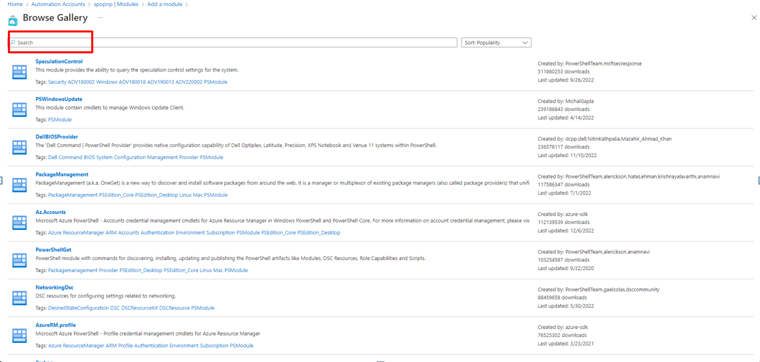
    • Click on browse gallery

    modules imported into the Automation account

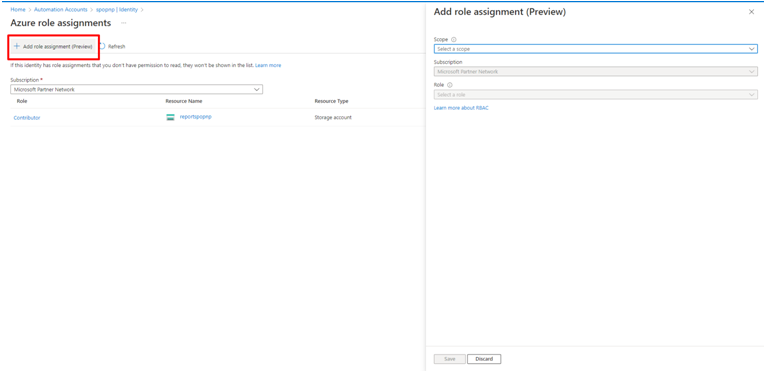
    • Select + Add role assignment (Preview) to open the Add role assignment (Preview) page.

    Add role assignment (Preview) page

    • Select Save, and then close the Azure role assignments page to return to the System assigned tab.
    • Select the User assigned tab.
    • Select your user-assigned managed identity from the list to open the ManagedIdentity page.
    • Take note of the Client ID for later use.
    • Using AD app registration : –
    • Sign in to the Azure portal and navigate to AzureActive Directory.
    • Under Manage, select App registration.
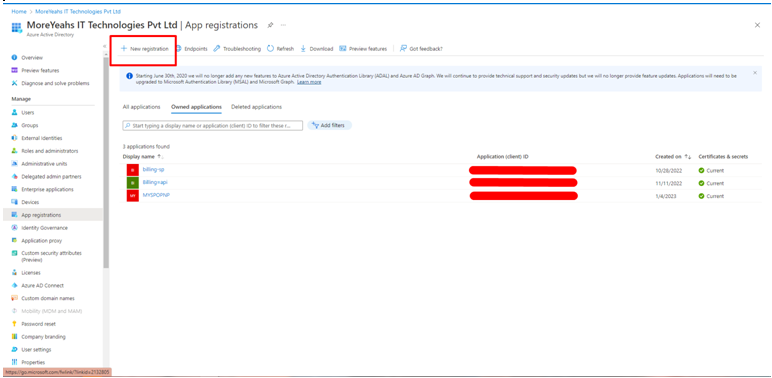
    • Click on New registration, to open registration page.

    Using Ad for app registration

    • Input required details and select register.
    • Select Create.

    Create a runbook

    Add code to the runbook

    You can either type code directly into the runbook, or you can select cmdlets, runbooks, and assets from the library control and add them to the runbook.

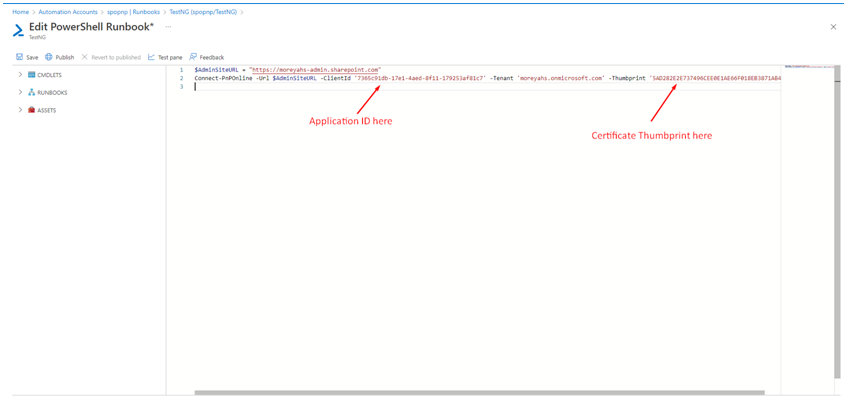
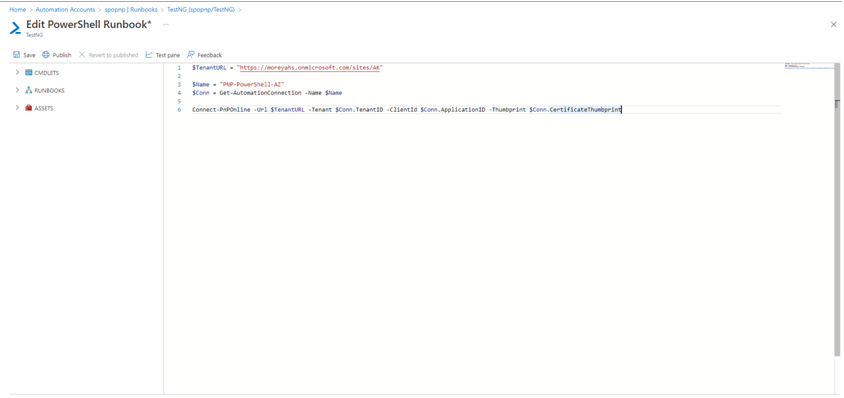
    For example, we will try to connect SharePoint Online using App Registration.

    • Select Overview and then Edit to open the textual editor.

    add code to the runbook

    • Here is another method to provide ClientID, Tenant and Thumbprint.(Most Secure)
    • Navigate to Automation Account, under Shared Resources, select Credentials.
    • When the runbook job completes, the Test page displays its output.

    Test page displays its output

    Publish and start the runbook

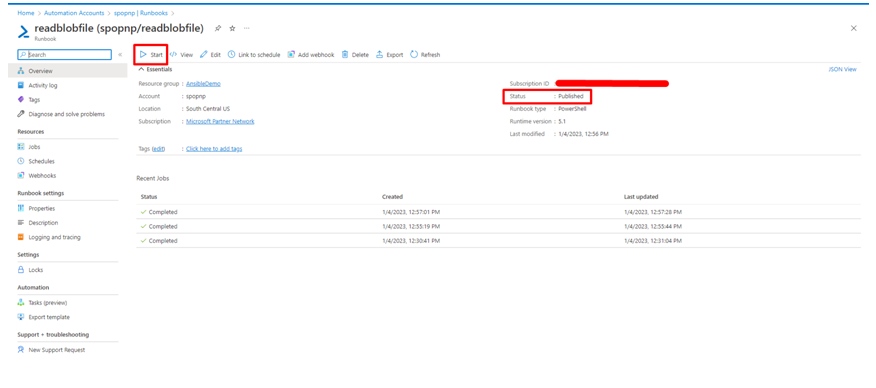
    • Select Publish to publish the runbook and then Yes when prompted.
    • The Status field now shows Published. Review the options across the top that allow you to start the runbook now, schedule a future start time, or create a webhook so that the runbook can be started through an HTTP call. Select Start and then Yes when prompted to start the runbook.

    Publish and start the runbook

    How to get file from SharePoint directory or any cloud storage

    • For example, we are fetching file from local directory

    get file from SharePoint directory or any cloud storage

    • Search for the module you want to add

    Search for the module to add

    Methods to connect Automation account with resources:

    • Using managed identities : –
    • Sign in to the Azure portal and navigate to your Automation account.
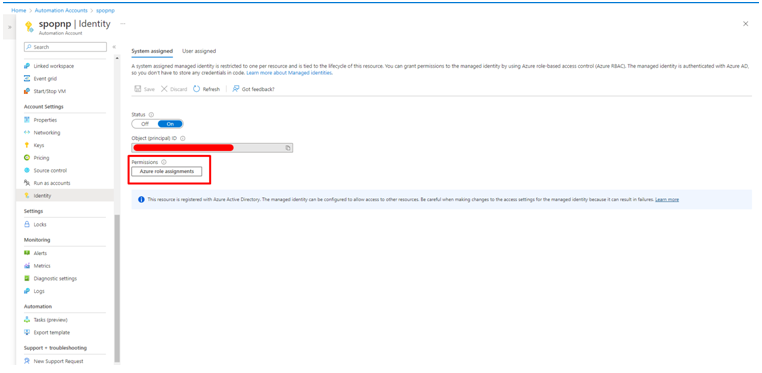
    • Under Account Settings, select Identity.
    • From the System assigned tab, under Permissions, select Azure role assignments to open the Azure role assignments page.

    Methods to connect Automation account with resources

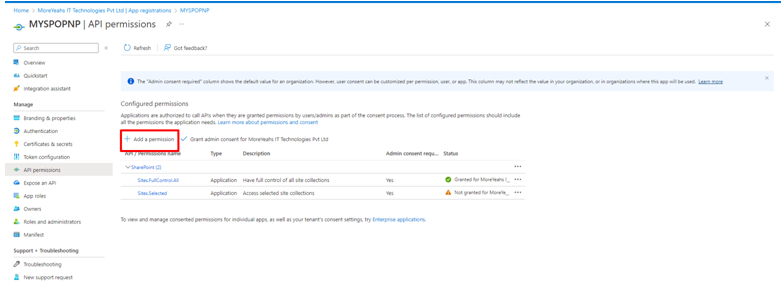
    • Now open the newly created app registration, under Manage select API permissions and give required permissions by selecting Add permission.

    Select add permission

    • Under Manage, select Certificates & secrets and upload certificate.
    • Take note of the Thumbprint for later use.

    Create new runbook

    Start by creating a simple PowerShell Workflow runbook. One advantage of Windows PowerShell Workflows is the ability to perform a set of commands in parallel instead of sequentially as with a typical script.

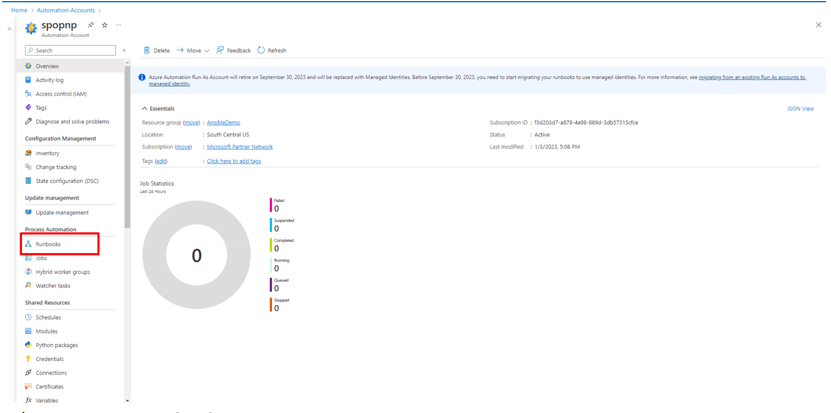
    • From your open Automation account page, under Process Automation, select Runbooks.

    Create new runbook

    • Select + Create a runbook.
    • Name the runbook. For example, test.
    • From the Runbook type drop-down menu, select PowerShell Workflow.
    • From the Runtimeversion drop-down, select 5.1.
    • Enter applicable Description.
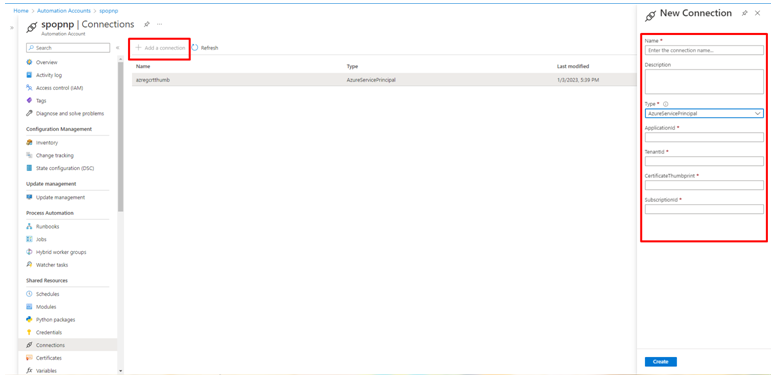
    • Select Add Connection, input required details.

    Test the Runbook

    • Select Create.
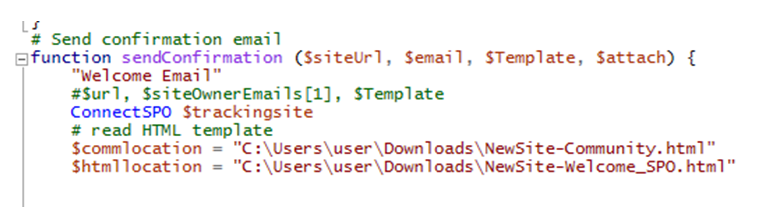
    • You can get this details using Get-AutomationConnection(See below cmd)

    Test the Runbook

    • Select Test pane to open the Test page.
    • Select Start to start the test. A runbook job is created and its status is displayed in the pane.
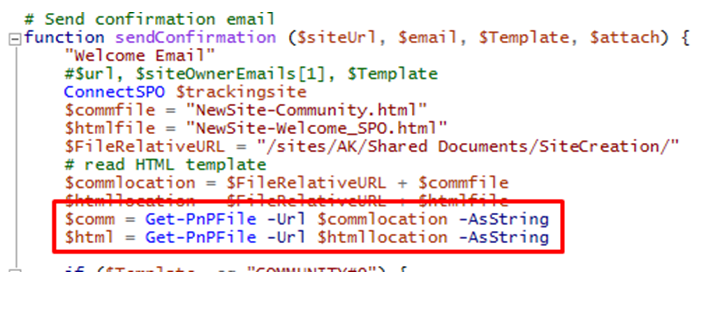
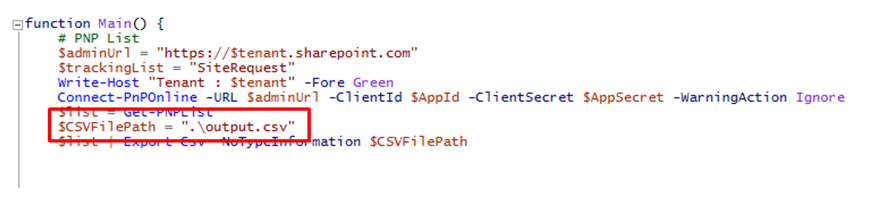
    • But in runbooks, we can’t fetch files from local directory so can put it on SharePoint directory or any cloud storage. For example, we have stored our file on SharePoint site – “/sites/AK/Shared Documents/SiteCreation/” then we can get it using Get-PnPFile.

    • We can also store output in runbook directory using path as “.filename”.

    store output in runbook directory 

  • Five Reasons to Opt SharePoint Development Services in Your Business

    Five Reasons to Opt SharePoint Development Services in Your Business

    Reliable Architecture

    Reliable Architecture

    Before beginning your actual work, a developer will essentially analyze all of the technical details that come with a project. Therefore, If you currently have a SharePoint platform, they will study every part of it when you need technical enhancements and maintenance.

    Unique Branding

    SharePoint will provide a default design that you can use the same as-is for your application. However, if you need it in unique design, template, and design, you will need to hire experienced software developers. Branding is an important aspect of launching a high-end business from the comfort of one’s own home.

    Flawless Integration

    Flawless Integration

    You do not want your company’s SharePoint to become a stand-alone platform. To generate workflow systems, You’d like to combine SharePoint with several applications. If your firm uses an enterprise resource solution, CMS, CRM, exchange server, or even an HR system, you can choose SharePoint.

    Completely secure

    It is one of the primary benefits that makes SharePoint so popular with users all over the world. It manages even the most sensitive and confidential information with extreme caution, thereby eliminating all security worries.

    Custom Development

    Aside from an elaborate layout and design, you will need your website to be built in a customised manner based on business and commercial needs. You might ask your developers to assist you in using the site to fully automate your whole business process as well as the workflow processes.

    MoreYeahs Inc provides end-to-end SharePoint application development services to enterprises to provide innovative solutions and improve their existing infrastructure. We assist enterprises in maximising the capabilities of Microsoft SharePoint to achieve optimum efficiency and growth.

  • What is SharePoint? A Guide to Its Key Features

    What is SharePoint? A Guide to Its Key Features

    Best Features of SharePoint

    It is no longer a secret that SharePoint is among the most highly demanded tools for building private sites. As a flexible platform, SharePoint adoption assists companies in digitizing communication and collaboration across organizations.

    On this ground, let’s take you through the key features of SharePoint that ensure streamlining of communication across organizations in the following points.

    1. Improvised OneDrive

    Initially, Microsoft 365’s SharePoint 2019 lets on-premise users sync their Onedrive with Windows 10. Nevertheless, the Next Gen Sync Client, or NGSC is the updated version of SharePoint 2019. This allows users to work on files on demand and other latest innovations.
    Improvised OneDrive

    2. AI-Powered Search

    With Azure AI-search, SharePoint development service users can access and extract data from diverse sources. Azure AI Search is a crawler that empowers SharePoint Online Indexer as an interesting SharePoint feature. This indexer helps execute crawling by connecting to your SharePoint site and indexes documents from several data libraries.
    AI-Powered Search

    3. Better Mobile Responsiveness

    Every SharePoint site today is responsive through any device. Thus improved responsiveness is one of the noteworthy key features of SharePoint. To take mobile responsiveness of SharePoint to another level, you can also access the SharePoint app. Through this, you can interact with your files on the go easily through your mobile.

    Furthermore, you can also download the documents easily through this app. You will also receive a notification every time a new document gets uploaded on SharePoint intranet. This will ultimately help you ease the process of streamlining and collaboration with your team members even remotely.
    Better Mobile Responsiveness

    4. Improved Libraries and Lists

    With the updated version of the best features of SharePoint, users can have all relevant information at their disposal conveniently.

    The updated lists and libraries offer a glance at information like metadata and permissions on the very first page. Furthermore, you can also share the information with “Copy to” and “Move to” options. You can also refine the data with conditional formatting of the libraries and lists.
    Improved Libraries and Lists

    5. Modernized Outlook for SharePoint Communication Sites

    Updated communication sites are the new and one of the most noteworthy SharePoint features. Users of SharePoint application development services opt for communication sites to share any business-related updates news and policies.

    The updated SharePoint 2019 also provides three different templates to assist in seamless communication. They are Blank, Showcase, and Tropic.
    Modernized Outlook for SharePoint Communication Sites

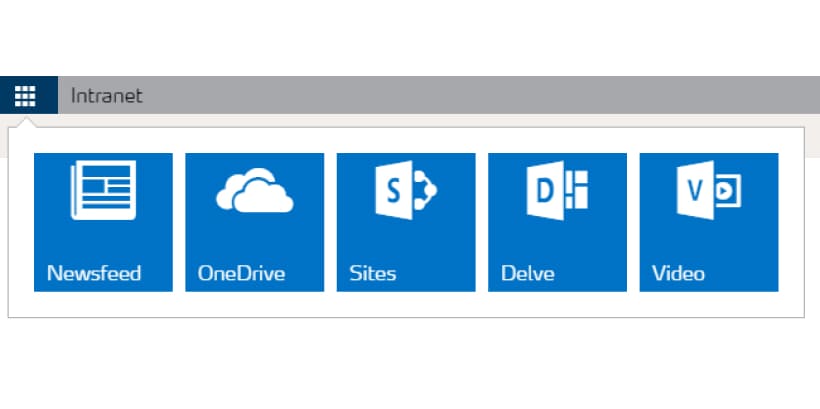
    6. An Improvised Hybrid App Launcher

    A Hybrid App Launcher is another new interactive key feature of SharePoint. This ensures a smooth and seamless transition between the on-premise and online modes when working hybrid.
    An Improvised Hybrid App Launcher

    7. Enhanced Integration with Microsoft Teams

    The new updates of Microsoft 365’s SharePoint a digital work environment based on tools. The platform can also extend functionality with improved integration with tools like OneDrive and Teams.

    Furthermore, its close integration with Microsoft Teams ensures quick communication among team members in terms of sharing documents. This helps organizations to focus on enhancing productivity in the workplace.

    Final Thoughts

    To conclude, there are a variety of SharePoint benefits that can help teams work together efficiently. Its list of key features includes document libraries, discussion boards, and calendars.

    The points above cover key features of SharePoint that make it a crucial application for today’s workplace. Furthermore, SharePoint also offers a diverse customization option that allows users to easily organize tasks and information as per their priority.

    To know more about SharePoint, contact our experienced team at MoreYeahs.
    Frequently Asked Questions
    Why is SharePoint important for modern business?
    SharePoint is essential for businesses today as it enhances collaboration between employees. To achieve this, SharePoint streamlines document management and supports business process automation while seamlessly integrating with Microsoft 365. Additionally, it also ensures security and compliance while boosting productivity.
    How is SharePoint different from Google Drive?
    SharePoint offers document management and advanced collaboration while integrating with Microsoft 365. This helps SharePoint support complex workflows and enterprise needs. Whereas, Google Drive solely focuses on cloud storage and document sharing. Google Drive also seamlessly integrates within the Google ecosystem.
    How are SharePoint and OneDrive Different?
    SharePoint helps simplify team collaboration activities like business process automation, and document management while integrating with Microsoft 365. OneDrive on the other hand, offers a personal cloud that focuses simply on file storage and sharing along with basic collaboration features. Seamless workflow practices are not a necessity for OneDrive as it is for SharePoint.

  • How Does SharePoint Work with OneDrive?

    How Does SharePoint Work with OneDrive?

    However, most SharePoint users who require a consistent experience for file sharing and security may need to utilize OneDrive. It facilitates seamless file experience across various devices, including mobile, web, and desktop.

    Ever thought about how does SharePoint work with one drive? Let’s find it out!

    SharePoint users can store files in SharePoint online or can integrate OneDrive. Both SharePoint and OneDrive offer PowerPoint, Excel, Word, and OneNote to work with office files. However, OneDrive is suitable for organizations/users that need personal storage.

    With OneDrive, every representative of an organization receives 1TB of storage for storing files that are personal and not meant to share. OneDrive users can store, find, edit, and sync documents. Moreover, share documents with specific people.

    How to Sync SharePoint with OneDrive?

    Microsoft SharePoint and OneDrive integration is a straightforward process. However, to sync SharePoint to OneDrive, users must know that old hyperlinks to documents won’t work after moving a file from one drive to SharePoint. We recommend users send updated links to others users to lead them to the new version of files.

    The second most important thing to consider is always to inform and redirect other users to the new OneDrive document if you copy any file from Microsoft OneDrive to SharePoint.

    It will ensure other users access and make edits in the correct file. Users can copy or move files from Microsoft OneDrive to SharePoint in simple steps; firstly, they can select files or folders and then choose the option “Copy to” and choose a destination where they want to copy/move files. Once you complete selecting the location, click on “Copy here.”

    As you can see, copying or moving files to SharePoint is an expeditious process. Nevertheless, it can be a long process for some users to get this done, depending on the quantity and sizes of the files.

    Wrap Up

    To sum it up, we can conclude SharePoint and OneDrive work seamlessly when integrated well. The combination of both solutions will be the most suitable for document-related operations. Still, for most users, SharePoint and OneDrive seem to overlap at first glance. But, both solutions are built specifically to perform certain tasks for businesses. An organization or individual SharePoint users must evaluate their requirements when determining whether to choose SharePoint or OneDrive. We hope you’ve got an idea of how does SharePoint work with one drive.

    If you’re facing difficulties using Sharepoint and OneDrive together, get in touch with our SharePoint consulting team to optimize both solutions as per your business needs. Also, if you have any questions about using SharePoint for your business, feel free to reach out to us.